Integrate WebinarJam with Bucket.io
Integration
Follow the steps below to add a WebinarJam integration with bucket.io:In WebinarJam:
To integrate WebinarJam with bucket.io, it is necessary to first have the API Key on hand. If you do not have it available, please follow these steps to retrieve it:- Sign in to WebinarJam.
- Click on "My webinars"
- Then, click on "Advance Settings" in one of the available webinars
- Click on "API custom integrations"
- Copy the API Key


In Bucket.io:
Once the API key is available, follow these steps:- Click on "Settings"
- Click on "Integrations"
- Drag the WebinarJam Logo and drop it in the Integration area
- Enter the WebinarJam API Key
- Click on "Save"
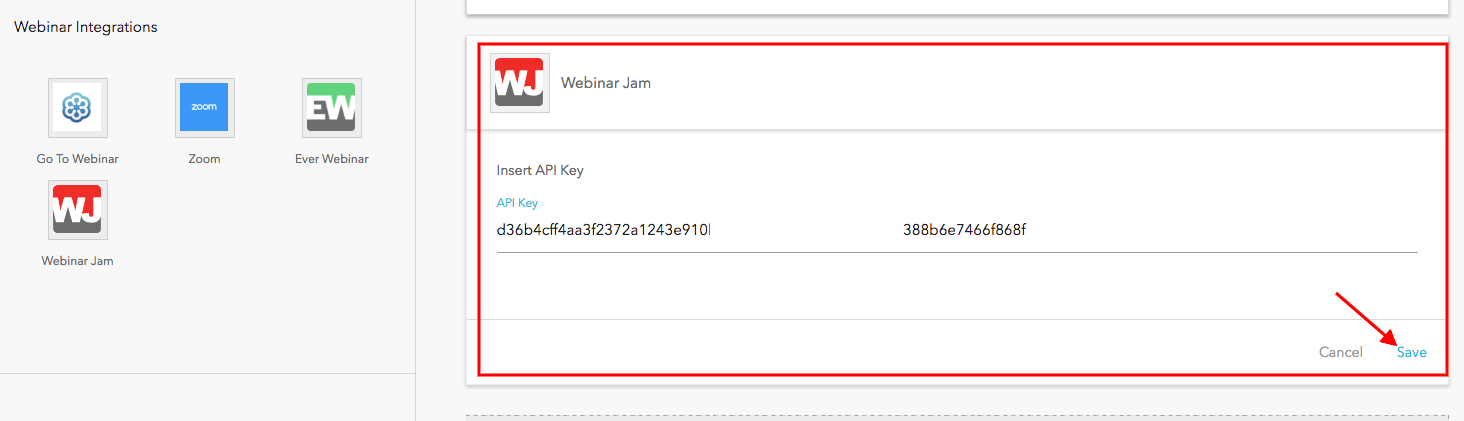
Setting up WebinarJam in bucket.io
In a Discover Survey or Segmentation Funnel, follow the steps below to set up the EverWebinar Registration Page:- Click on "Welcome Page"
- Select "Webinar Page"
- In the left column, select WebinarJam from the drop-down menu
- Then, select the webinar you want to integrate from the Webinar List drop-down menu
- Select the date of the Webinar
- Other aspects such as Headline, Body text, Image/Video, Warning Text, Counter, Button text, and footer can be enabled, disabled or edited
- Click on "Save Page" after the setup is finished
.png)
NOTE: After creating a Webinar Page, it is mandatory to add a Contact Info/Lead Capture page in order to collect the audience information (Name and Email) and register them correctly in the Webinar.